
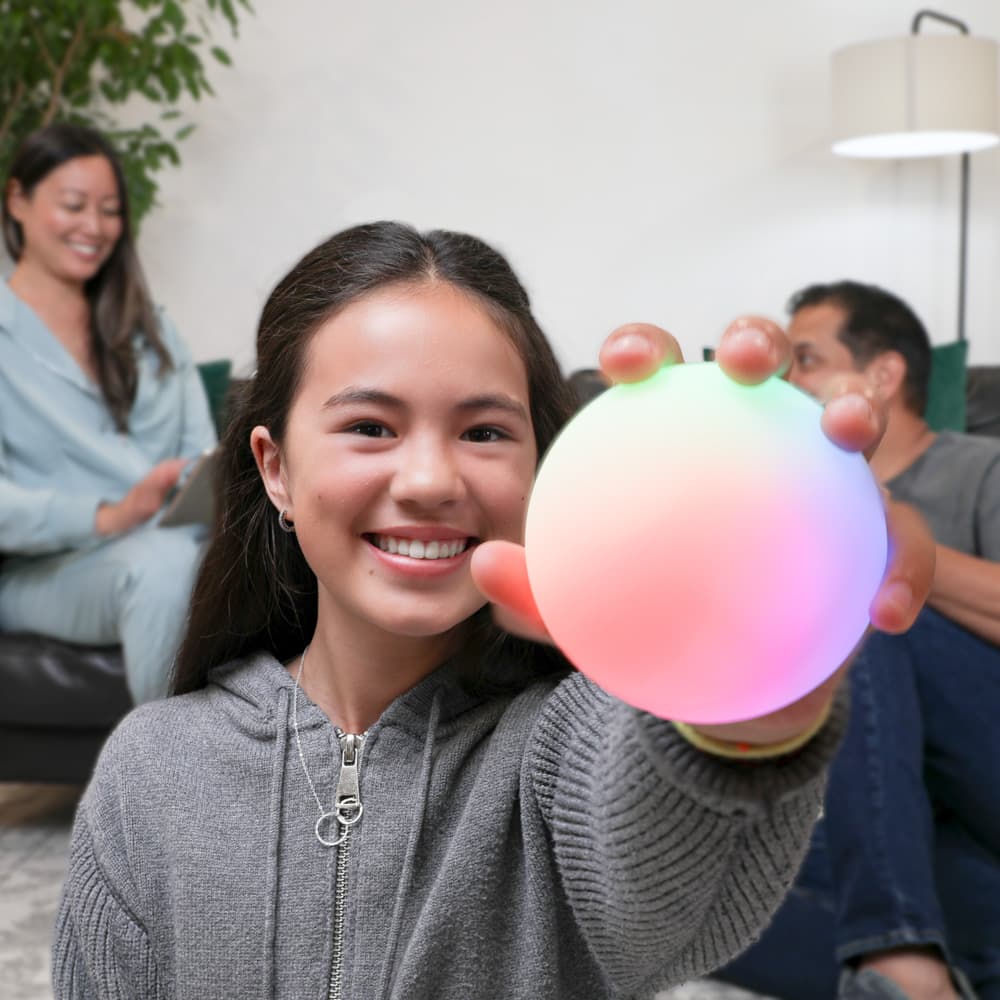
1. Power on
Press and hold the button for 2 seconds. You should see a brief startup animation.
2. Orient yourself
Unless otherwise stated, we assume you're holding the Qubi with the button facing up and the charger port facing back. So “upwards” means “in the direction of the button.”
If you're familiar with quantum, here's how it maps to the Bloch sphere:
+z = |0⟩, port along −x.New to the Bloch sphere? Start with What is the Bloch sphere? and come back here.
3. Bump to entangle
With both Qubis on, hold one in each hand and gently bump them together. You should see a flash on both spheres. That flash signifies entanglement.
If nothing happens, bump them a little harder. If they vibrate, you bumped too hard and triggered a measurement instead. Aim for something in between. After a couple of tries you'll find the right strength.
Calibrating the bump
- Too gentle: nothing happens. Try harder.
- Just right: both spheres flash. You're entangled.
- Too hard: they vibrate (that's a measurement, not a bump). Try lighter.
4. Jab to measure
Now jab both Qubis up and down. They'll collapse to definite outcomes. Look at where the dot lands on each.
They will always be facing opposite directions. That's the entanglement at work: measuring one instantly correlates with the other. Bump and jab again, as many times as you'd like. The outcomes will be opposite every single time.
5. Reveal the colors
Double-tap the button to toggle the visualizer. Do it quickly. If you wait too long between taps it won't register.
With the rainbow visualizer on, you'll see the color patterns on the two spheres are opposite. That's the singlet state showing you that every direction on one sphere pairs with the same direction (opposite outcome) on the other. Try the bump-and-jab routine now and watch the colors shift.
6. Adjust brightness
Triple-tap the button to cycle brightness. It steps down each time. When it gets too dim, the next tap jumps back to full brightness.
7. Power off
To turn the Qubi off, hold the button for 5 seconds.
That's the whole quickstart. For everything else, head into the app.
The Qubi app
Qubi has a mobile app. There you can manage your Qubis, pair them to each other, connect them to a real quantum computer, and work through a library of guided activities. Download it here.
Qubis communicate over Bluetooth. Before they can talk to each other, they need to be paired in the app. Pairing is a one-time setup; after that, they recognize each other automatically when both are powered on and in range.
Button cheat sheet
| Gesture | Action |
|---|---|
| Long press, 2 seconds | Turn on |
| Long press, 5 seconds | Turn off |
| Single tap | Enable controlled gates |
| Double tap | Toggle visualizer |
| Triple tap | Cycle brightness |